Auto Credit Transfer
Table of Contents
Overview
The Auto Credit Transfer feature in RIO Education allows completed Course Connections to be copied from one Program Enrollment to another. This feature is particularly useful when a student decides they wish to change programs, as they will not lose their existing progress and there is no need for a staff member to manually reconcile the two.
For a practical example, make sure to try out our RIO Challenge example!
Use case
A student has a current Program Enrollment for the Bachelor of Business Management. After studying for 2 semesters, they would like to change their degree and instead enrol into the Bachelor of Business Information System program.
Some of the courses that they have already completed in Business Management are also in the plan for Business Information, and therefore the student should not have to repeat these courses.
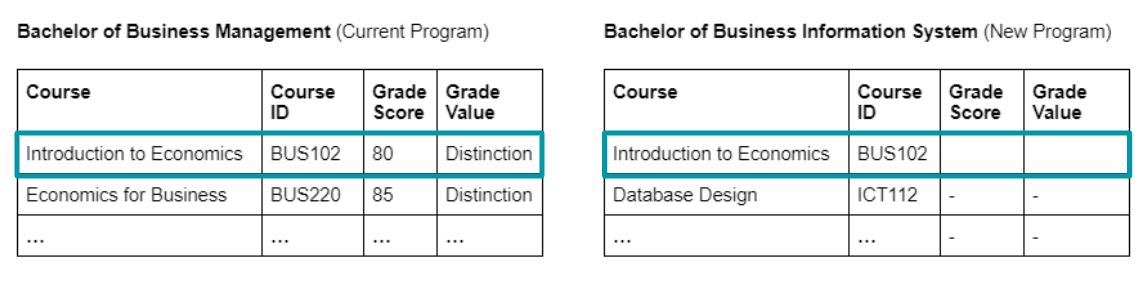
Let's say they have completed ‘Introduction to Economics’, a course present in both programs. When the student's enrolment into Business Management is created, we need to make sure that this course is automatically marked as complete and their grade is copied over.
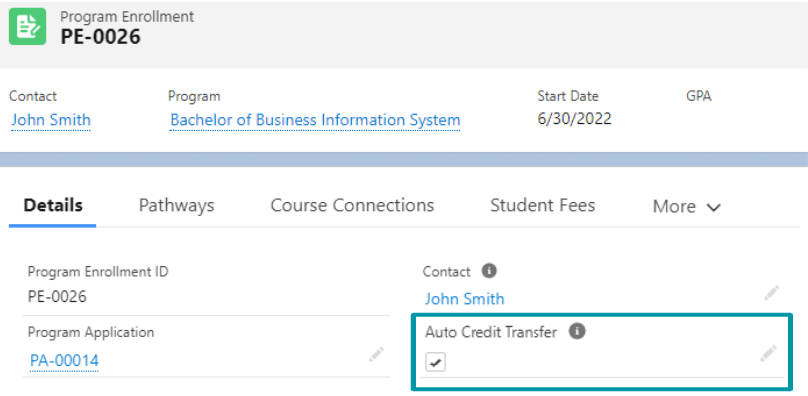
In this case, when their program transition is finalised, the admin can create create their new Program Enrollment record and ensure the ‘Auto Credit Transfer’ checkbox is ticked.
You should also make sure that ‘Auto Credit Transfer’ is checked on their first PE, too.
The results from the existing Course Connection will be copied and transferred to the matching Course Connection in the new Program, and the student will not be required to take those same Courses again.
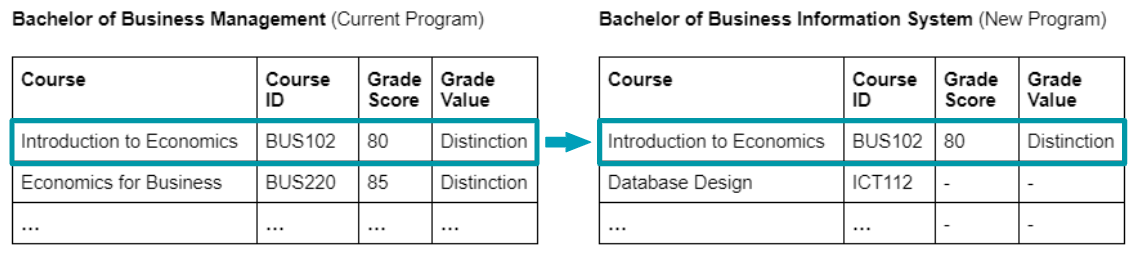
This process is automatic, and the credit transfer will take place (if there are matching eligible Courses) when a new Program Enrollment is created for the student.
What if there are multiple prior attempts?
If a student has taken a course multiple times before - maybe they retook the course to get a better grade - then the Auto Credit Transfer functionality will use the Course Connection with the highest Grade.
Therefore, if the Auto Credit Transfer process finds multiple eligible earlier courses, one with 63% and another with 87%, then the new PE will receive the version of the course that received 87%.
If the Courses are not the exact same ones, but are considered equivalent
You may have courses that are not exactly the same, but are considered equivalent for credit transfer purposes.
Let's say the transferring student has taken BUS102. In the time since, the course has been overhauled and is now ECN101, and is represented by a new Course record. Even though the curriculum and learning outcomes are slightly different, the student won't need to re-take the course and their previous attempt should still count towards their progress in the new program.
The Auto Credit Transfer feature supports this, but it will require a little bit of extra setup first.
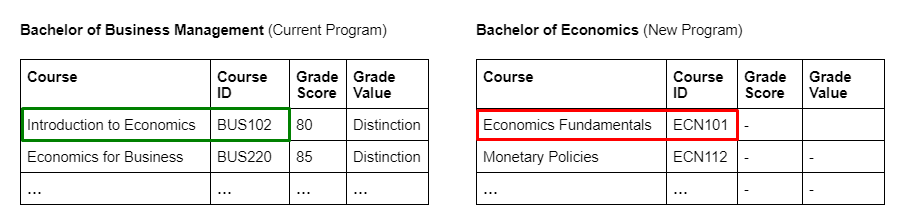
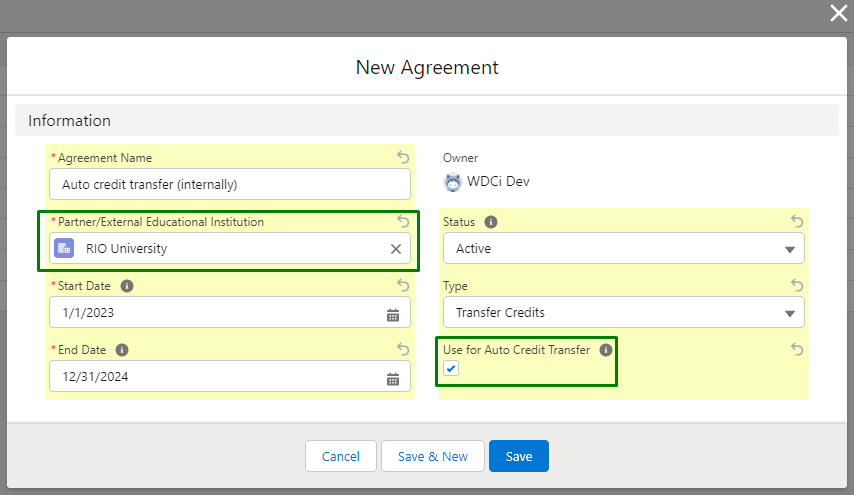
This setup is done using the Agreement and Agreement Course records, which is the same system used for external credit transfer during admission.
- Create (or edit, if one already exists) an Agreement record and link it with your own Educational Institution record. Fill out the rest of the fields as below, and make sure the “Use for Auto Credit Transfer” box is checked.
- Create an Agreement Course under that Agreement.
Specify the Course that will be transferring the credit on the ‘Transfer Course ID’ field.
Specify the Course that will be receiving the credit on the ‘Course ID (s)’ field.
Ensure that the ‘Status’ is active, and that the ‘Type’ is not ‘Manual Assignment’.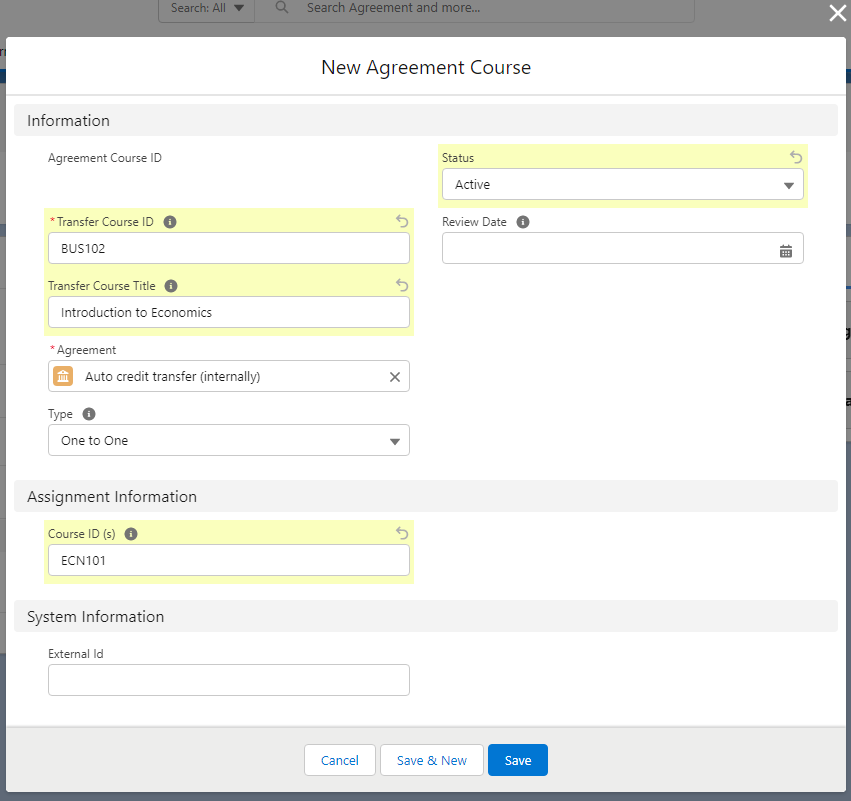
- When the student is enrolled to the new Program, check the ‘Auto Credit Transfer’ checkbox on their new Program Enrollment record.
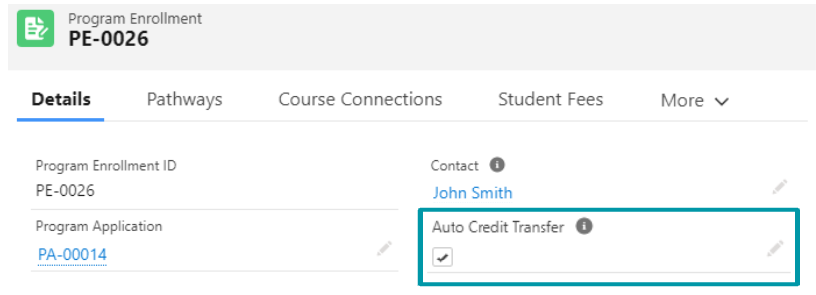
The results and credits from BUS102 will be automatically transferred to the new Course ECN101 (same as the first use case above), even though they do not have the same Course ID/code.
Configuration
In order for Auto Credit Transfers to work, make sure to do the following first:
- Go to: Setup > Custom Settings > RIO Education Settings > Manage, and make sure that the ‘Auto Credit Transfer’ checkbox is ticked.
- The ‘Auto Credit Transfer’ checkbox for both source and target Program Plan must be checked. This is to ensure that all PEs created under this Program Plan will have the ‘Auto Credit Transfer’ checkbox enabled, as it will be copied automatically. It also means you can signify some plans aren't eligible for transfer.
- The 'Auto Credit Transfer' checkbox for both source and target Program Enrollment must be checked. This flag will be automatically checked on creation if the Program Plan's ‘Auto Credit Transfer’ checkbox is checked. This flag also allows our logic to take these Program Enrollments into consideration.
There is an advanced feature to change the mapping under Setup > Custom Metadata Types > Auto Credit Transfer Configuration. This will let you control what fields should be copied over from the old CC. For standard scenarios, you can use the default settings.
You can also configure the ‘Contribute Credit Transfer’ option in the Program Enrollment Statuses (Custom Metadata Type), where you can decide which Program status at the source Program Enrollment should contribute/trigger the Auto Credit Transfer against a target Program Enrollment.
In the default or standard settings, only completed or current Program Enrollments can act as a source for Auto Credit Transfer, but you can also choose to allow it for other statuses (i.e. cancelled or withdrawn).
If we run through our original use case above, the setup should look like this:
- RIO Education Settings' ‘Auto Credit Transfer’ checkbox is checked.
- Source Program Plan: Bachelor of Business Management Program Plan's ‘Auto Credit Transfer’ field is checked.
- Source Program Enrollment: Fred's Program Enrollment to Bachelor of Business Management has the 'Auto Credit Transfer' field checked.
- Target Program Plan: Bachelor of Business Information System Program Plan's ‘Auto Credit Transfer’ field is checked.
- Target Program Enrollment can be either created or updated with the ‘Auto Credit Transfer’ field checked.