Cloning a Program Plan
Duplicating copies of Program Discipline, Plan Requirements, and Program Pathway
Table of Contents
Overview
'Program Plan Clone' is a Lightning Action available on a Program Plan record.
This allows admin to clone a Program Plan and its:
- Program Discipline (Major/Minor).
- Plan Requirements (and the Program Course Requirements under them).
- Program Pathways.
For a technical overview, please refer to the RIO Ed - Program Plan Cloning documentation.
Use case
Setting up a Program Plan can be a lot of work. After you've done it once, you can make use of the clone feature to quickly create a copy, and then any changes you need to make to the plan can happen there.
Let's say you offer a Bachelor of Business Information Systems. You've already got a Program Plan for the 2024 version of the degree. There have now been some changes to this program for the 2026 intake - maybe a course has been removed, or a new one added, or there are more elective options for students - and these changes need to be made in RIO to make them available for new students.
Program Plans should be immutable. That means after they've been finalised and have enrollments against them, they shouldn't be edited anymore as it can cause data inconsistencies. You could then create a brand new 2026 Program Plan from scratch, but it would be much quicker to just make a copy of the 2024 Plan and make your changes there.
To do this, simply click on the 'Program Plan Clone' action at the top right of the Program Plan record page. If the button is not found, you will need to make sure it is added to the layout (see here for reference, or ask your admin for help if you are unsure).

This will open a popup screen where you can name the new Plan and choose which Pathways and Program Disciplines (along with the Plan Requirements under them) to clone into a new Program Plan. If the new plan doesn't offer a half-time option anymore, just don't include it in the clone.
This screen is configurable. If you would like to include more fields - maybe the required credit count has changed - then you can ask your admin to edit the “ProgramPlanCloning_EditableDetails” field set on the Program Plan object.
Remember that after the clone you can open up the Program Plan as normal and make further edits to it. You are not limited to just this screen!

You'll note there's also an option to clone the Program Course Requirements. As a refresher, these are course requirements (e.g. a pre-requisite) that only apply to students enrolled in this program plan. Depending on what's changed, you may wish to preserve the existing requirements and copy those over too, or it may be easier to start again from nothing - so check the box accordingly.
When you're happy, click the Clone button and RIO will handle the rest in the background. A new Program Plan will be created, the Plan Requirement (both Groups and Courses) will be copied over, and if you've selected these options, so will the Pathways, Disciplines, and Requirements.
If you are using Shared Groups, they will stay on the original Program Plan and we won't copy them, but we'll still copy the Plan Requirement (Group) that's referring to it. That way the new Plan inherits the same shared list.
.png)
You are now free to return to the Academic Program Account page, find the new Program Plan you've just cloned, and proceed to make the necessary changes.
Migrating students to the new Plan
There may be a situation where after you've created the new Plan, you need to migrate all students still studying on the old Plan over to the new one. This may be particularly important if a Course is no longer offered, and therefore those in the old Plan (where that Course is mandatory) may no longer be able to meet their requirements.
New in 3.24, we now have the program transition wizard which can handle just this. Refer to the linked documentation on how to set up and use this feature.
If Program has been cloned without its Disciplines
Create Program Discipline and Discipline Requirements from template
Description When situations arise that prevent the User from cloning a Program al...
Description
When situations arise that prevent the User from cloning a Program alongside its Program Discipline, you may utilize this method to carry over the remaining Program Discipline records and its Requirements for the newly cloned Program.
Resolution
Once a Program has been successfully cloned without its Discipline, please follow the below steps:
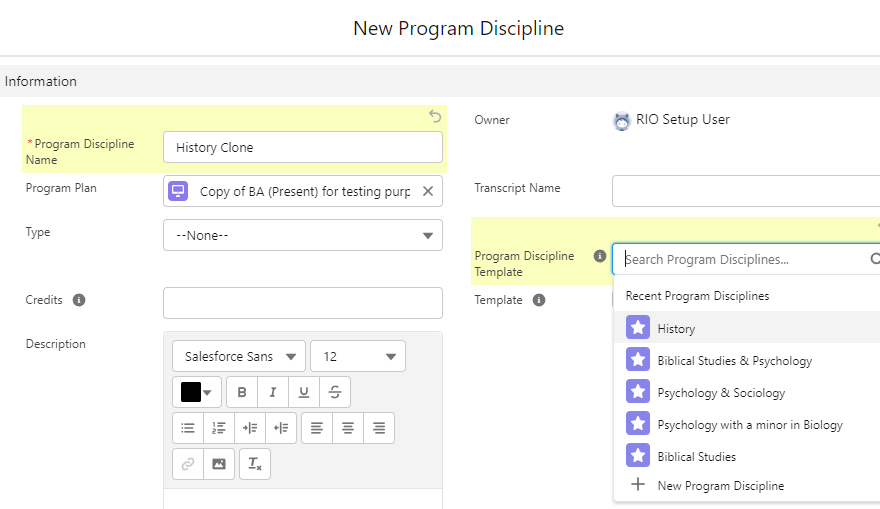
- Head to the Program Discipline tab in the newly cloned Program Plan and click 'New'.
- In the pop-up window, only fill in the Name and Program Discipline Template you wish to copy from.
A Program Discipline template should not be linked to any Program Plan and the Template checkbox is ticked.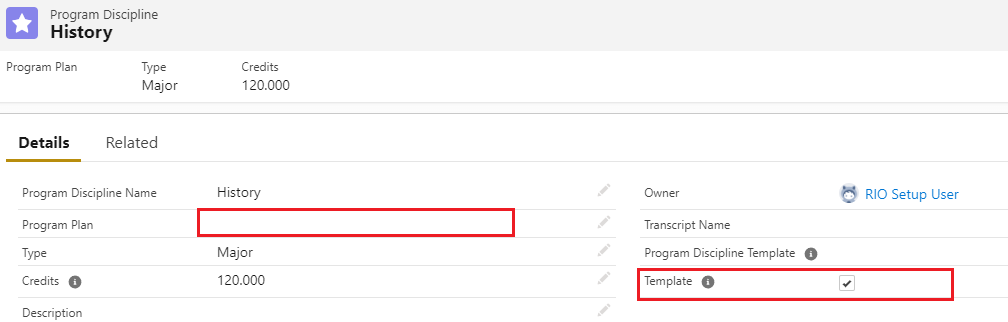
- Check that the created Program Discipline should carry over other information like Type and Credits from the Template, and that the Template checkbox is unticked as it should not be a Template record.
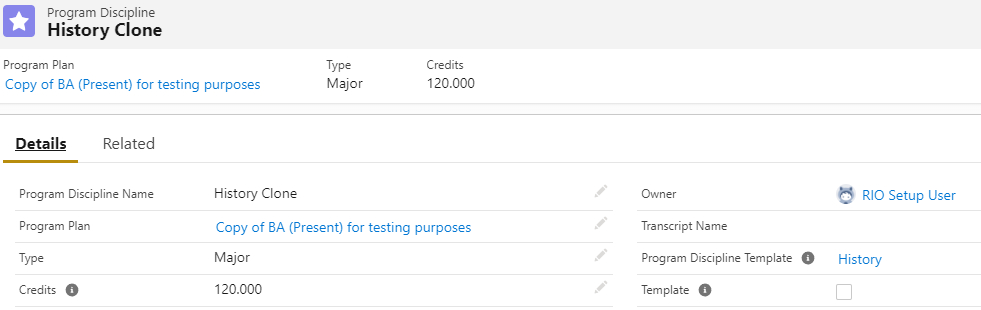
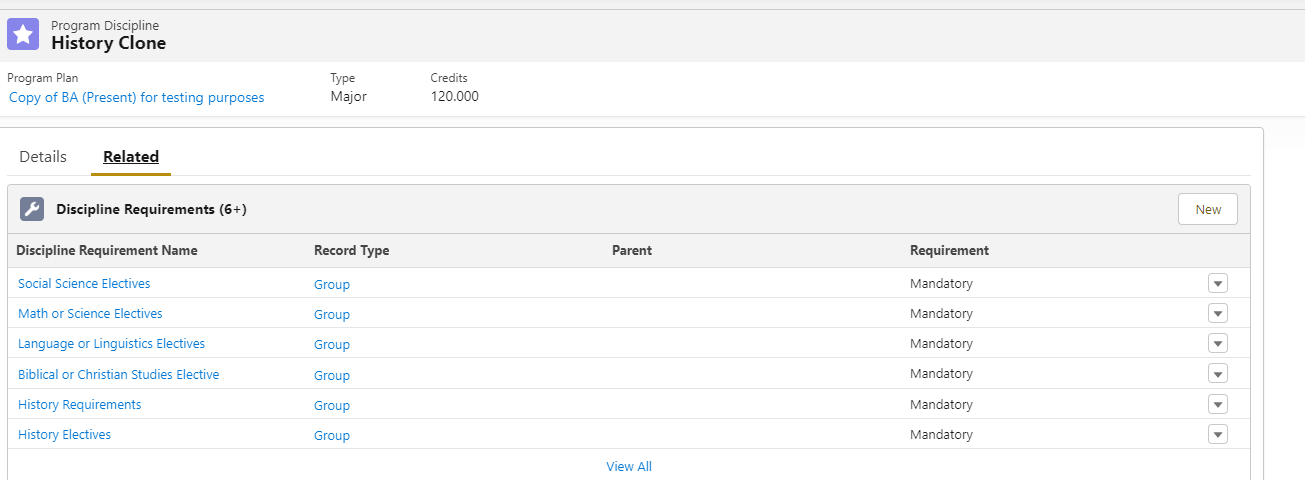
It's related Discipline Requirement is carried over as well at this stage.