Prerequisites to enable grading for a Course
What you need to do in order to allow faculty to start grading
Table of Contents
Overview
This article covers the set up required in order to allow faculty to enter grades for their students.
Before doing this, please make sure that you have set up your institute's Grade Settings, so your students' final results can map to an outcome (pass/fail etc).
We will then make sure each Course is set up to make use of the correct Grade Settings, and review the different grading settings available.
Lastly, we will define the Grade Criteria for each course, denoting what weight each assessment has towards the student's overall result.
Supported Grade Criteria Structures
Before we get started, let's briefly discuss Grade Criteria. These records represent each assessment as part of the Course, and how much they contribute towards the total mark.
RIO Education supports two Grade Criteria structures: a “basic” single level structure, or an “advanced” nested one.
In both cases, you should make sure that the total weight sums to 100%, otherwise your students will see their final grades lower than expected.
Basic
This is the basic structure where all Grade Criteria are setup without any parent Grade Criteria. Each of the Grade Criteria will contribute to the final grade according to the weights (%) defined. The following are some samples:
| Type | Sample Configuration |
|---|---|
| Single Criteria | Exam = 100% |
| Multiple Criteria |
Practical = 30% Writing = 30% Exam = 40% |
Advanced
This is the advanced structure where grade criteria could be grouped under a parent grade criteria. The weight (%) defined in the parent grade criteria will contribute to the final grade. Please note that ONLY ONE LEVEL of parent-child grade criteria is supported. The following are some samples:
| Type | Sample Configuration |
|---|---|
| Single parent with child criteria |
Exam = 100%
|
| Multiple parent with child criteria |
Practical = 50%
Exam = 50%
|
| Combination of simple and advanced structure grade criteria |
Writing = 30%
Exam = 40%
|
Setup Instructions
Course Configuration
- Navigate to the Course tab, select a course record.
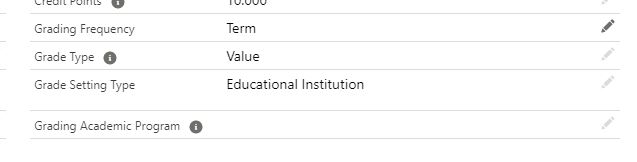
- Configure the following grading configuration:
- Grade Setting Type
- Not all Courses might be marked the same - e.g. some might have the pass hurdle at 50%, or 70%, and others might just be pass/fail - so select the right option here. There's instructions at Grade Settings on how to set these up if they're missing.
- Grading Frequency
- Weekly - This allows you to grade a student weekly (by ISO week). A new set of Term Grades and Grade records will be stored.
- Term - This allows you to grade a student by Term.
- Grade Type
- Value - The grade value (e.g. A) will appear as a picklist for faculty to select.
- Score - The grade score will appear as an input field for faculty to enter the score.
- Grade Setting Type
Grade Criteria
Grade Criteria are set against the Course.
In the case where your assessments frequently change, and so it is not suitable to define at the Course level, you have a few options:
- Enable Course Versioning (available since 3.24), and each time the assessment structure changes, create a new version to represent this.
- Make use of Custom Grade Criteria in order to define the assessment breakdown at the Course Offering or even Session level.
Faculty members can also set up their own Custom Grade Criteria from the faculty portal, in the cases where they set the particular assessments each offering period.
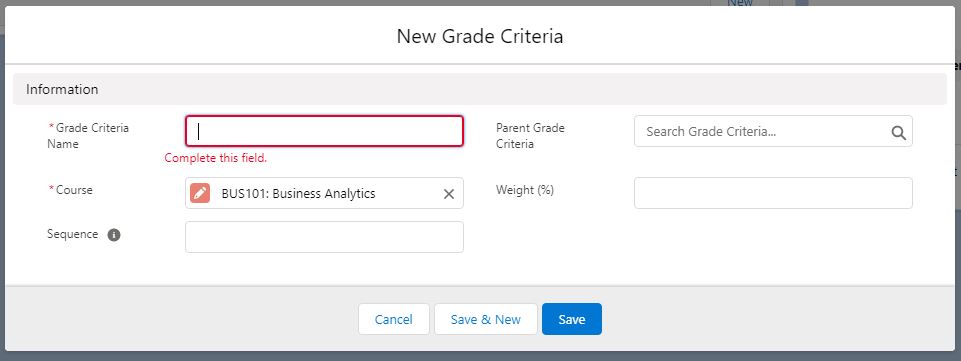
- With the Course record open, click on the Grade Criteria tab to define the criteria for this course.
- Ensure that the following is set:
- Grade Criteria Name: This will appear as the grading header in the grading wizard
- Course
- Sequence: The sequence of the Grade Criteria that appears in the grading wizard - earliest first
- Weight: The percentage that this Grade Criteria contributes to the total
- Parent Grade Criteria: Optional. Only used if you are setting up the advanced structure.